Project Task Tracker
Know what's late without reading every row; the summary does it for you.
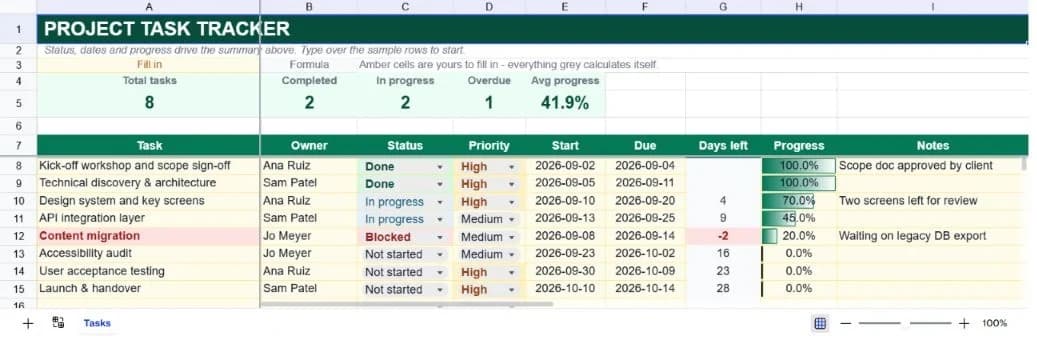
About the project task tracker
A task list stops being useful at about thirty rows, which is roughly where scanning for what's overdue becomes slower than the work itself. This template fixes that by putting five derived numbers at the top: total tasks, completed, in progress, overdue, and average progress across the board.
Each task carries an owner, a status, a priority, a start and due date, a percentage complete and a free-text notes field. A days-left column counts down from today's date automatically and clears itself once a task is marked Done, so finished work stops competing for attention.
The overdue count is the number most teams open the sheet for. It counts tasks whose due date has passed and whose status is anything other than Done, which means an unscheduled task never reads as late and a completed one never lingers in the figure.
What’s in the template
Everything below is already built into the file. Open it and it’s there.
Five-metric summary strip
Total, completed, in progress, overdue and average progress, all derived from the table below and updating as you type.
Thirty-eight task rows
Eight worked examples spanning a realistic project arc from kick-off to handover, plus formatted blank rows.
Automatic days-left countdown
Counts from today's date, goes negative when a task is late, and clears once the status reads Done.
Status and priority columns
Not started, In progress, Blocked and Done; High, Medium and Low. A legend at the bottom records the exact spellings the formulas count.
Frozen headers and task column
The header row and the task names stay visible while you scroll through a long list or across to the notes.
Progress percentage per task
Feeds the average-progress figure, which is a more honest read on a project than a count of completed tasks.
Who it’s for
Small teams without project software
Covers assignment, status, dates and progress (the four things a project tool is actually used for) without the onboarding or the per-seat cost.
Freelancers juggling client work
One sheet per client, or a single sheet with the client name in a spare column, and the overdue count tells you where to spend tomorrow.
Anyone running a one-off project
House move, event, product launch: anything with a deadline and more moving parts than fit comfortably in your head.
Managers preparing a status update
The summary strip is the status update. Screenshot it or read the five numbers straight off the sheet.
How to use the project task tracker
- 1
Replace the sample tasks
Type over the eight example rows rather than deleting them. That way the formatting and the derived columns stay intact.
- 2
Set due dates on everything
Tasks without a due date are invisible to the overdue count. If a date is genuinely unknown, put a placeholder and revise it.
- 3
Use the exact status spellings
The summary counts the word Done and the phrase In progress literally. The legend at the bottom of the sheet lists all four values.
- 4
Sort by days left when planning your week
Ascending puts the most overdue work at the top, which is usually where the week should start.
The formulas that ship with it
Every one of these is already in the file. They’re listed so you can see how it works, and change it if you want to.
Overdue count
=COUNTIFS(F8:F45,"<"&TODAY(),C8:C45,"<>Done")Two conditions: due date in the past, status not Done. Blank due dates are never matched by a numeric comparison, so unscheduled tasks are excluded automatically.
Days left (column G)
=IF(OR(F8="",C8="Done"),"",F8-TODAY())Counts down to the due date, and blanks itself for finished or undated work so the column only shows live commitments.
Average progress
=IF(COUNT(H8:H45)=0,0,AVERAGE(H8:H45))Guarded with COUNT because averaging an empty column returns a divide-by-zero error rather than nothing.
Completed count
=COUNTIF(C8:C45,"Done")A literal match on the status column, which is why the legend spells out the four permitted values.
Tips for getting more out of it
- Blocked is a status worth using honestly. A task sitting at 20% for three weeks tells you far less than one explicitly marked as waiting on something.
- Keep tasks at roughly a day or less of work. Anything larger hides its own progress and makes the average-progress figure optimistic.
- The notes column is where the reason lives. Six weeks later, 'waiting on legacy DB export' is worth more than any status value.
- Ask the assistant to list everything overdue grouped by owner before a stand-up. It reads the sheet and answers directly.
Ask questions about your data, generate formulas in plain English, and create charts instantly, all on top of the Project Task Tracker.
Questions about this template
More business templates
Professional Invoice
Fifteen line items with per-line discounts. Subtotal, tax and balance due calculate themselves.
Use thisEmployee Directory & Org Chart
Contact details and reporting lines, with tenure and department headcount derived automatically.
Use thisInventory Management System
Stock value per SKU and an automatic reorder flag the moment a line drops to its reorder point.
Use thisSave hours
Skip the setup. Start from a ready-made structure.
Error-free
Pre-tested formulas that just work.
Professional
Designed for real-world use, ready to share.
Consistent
Maintain standards across every document.
Ready to use the Project Task Tracker?
No setup, no learning curve, just results. Start free in seconds.
Pay as you go, no subscription required