Client Delivery Tracker
See what is due, what is drifting, and where the hours are going before the invoice arrives.
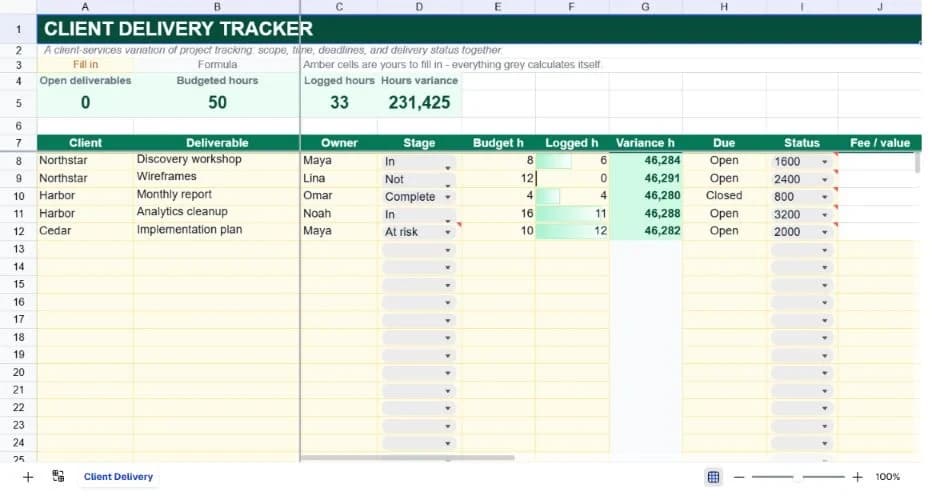
About the client delivery tracker
Client work becomes difficult to manage when delivery and commercial information live in different places. A task list can tell you that a deliverable is late, while a timesheet tells you that the budget has already been consumed, but the important decision sits between those two facts. This variation puts them together.
Each row represents a client deliverable. Capture the client, deliverable, owner, stage, budgeted hours, logged hours, due date, status, and fee or value. The calculated variance column shows remaining hours at a glance. Positive means hours remain; negative means the work has exceeded its budget and deserves a conversation.
The workbook is intentionally useful at two scales. A small agency can keep every account in one delivery review, while a freelancer can duplicate the sheet for each client and use it as a lightweight statement of work tracker.
What’s in the template
Everything below is already built into the file. Open it and it’s there.
Delivery KPI strip
Open deliverables, budgeted hours, logged hours, and total hours variance are always visible.
Client and deliverable columns
A row can represent a milestone, recurring report, workshop, or individual work package.
Commercial context
Fee or value sits alongside hours so operational decisions can be connected to margin conversations.
Stage and status dropdowns
Separate the work stage from the commercial status, such as Review versus At risk.
Variance highlighting
Rows with hours over budget turn red; rows with remaining hours turn green.
Client-specific variation
Duplicate the file per client for a focused delivery sheet, or keep all accounts together for portfolio review.
Who it’s for
Creative and digital agencies
Keep deliverables, deadlines, and account-level effort visible without building a separate report for every client.
Consultancies
Compare logged hours with the agreed effort before a fixed-fee engagement quietly becomes unprofitable.
Freelancers
Run a clean client-by-client delivery register and keep the fee context next to the work.
Account and delivery leads
Use At risk and Closed statuses to prepare a weekly client review from a single source of truth.
How to use the client delivery tracker
- 1
Enter the agreed scope
Create one row per deliverable and enter the budgeted hours before work begins. That baseline is what makes the later warning meaningful.
- 2
Log hours consistently
Update Logged h from your timesheet or weekly time review. Keep the unit the same across every row.
- 3
Update stage and status
Use stage for where the deliverable is in production and status for whether the engagement is open, at risk, or closed.
- 4
Review before the client call
Sort by negative variance or At risk status and agree on a scope, timing, or budget action before the issue becomes a surprise.
The formulas that ship with it
Every one of these is already in the file. They’re listed so you can see how it works, and change it if you want to.
Hours variance
=IF(B8="","",E8-F8)Budgeted hours less logged hours. A negative value means the deliverable has used more time than planned.
Open deliverables
=COUNTIF(I8:I37,"Open")+COUNTIF(I8:I37,"At risk")Counts work that still needs attention while excluding Closed rows from the headline.
Total logged hours
=SUM(F8:F37)Rolls every logged-hours entry into the KPI strip so a delivery lead can compare workload with capacity.
Tips for getting more out of it
- Do not wait until month end to update Logged h. Weekly updates are enough to catch scope drift while there is still time to change course.
- Use Notes if you need a reason for a variance, but keep the main status fields clean so filters and formulas remain dependable.
- Start by replacing the worked examples, then add rows only when the register's structure is working for your team.
- Keep dropdown labels consistent. The summary formulas deliberately count exact status text so the dashboard stays auditable.
- Use the AI assistant to add a new field, change a weighting, or turn the register into a weekly summary without rebuilding it.
- Duplicate a clean version before each new planning cycle. That gives you a simple record of what the team knew at the time.
Ask questions about your data, generate formulas in plain English, and create charts instantly, all on top of the Client Delivery Tracker.
Questions about this template
More business templates
Project Task Tracker
Owners, due dates and progress per task, plus a live count of what's overdue.
Use thisProfessional Invoice
Fifteen line items with per-line discounts. Subtotal, tax and balance due calculate themselves.
Use thisEmployee Directory & Org Chart
Contact details and reporting lines, with tenure and department headcount derived automatically.
Use thisSave hours
Skip the setup. Start from a ready-made structure.
Error-free
Pre-tested formulas that just work.
Professional
Designed for real-world use, ready to share.
Consistent
Maintain standards across every document.
Ready to use the Client Delivery Tracker?
No setup, no learning curve, just results. Start free in seconds.
Pay as you go, no subscription required