Weekly Timesheet & Billable Hours
Know what you worked, what bills, and what it comes to, on one sheet.
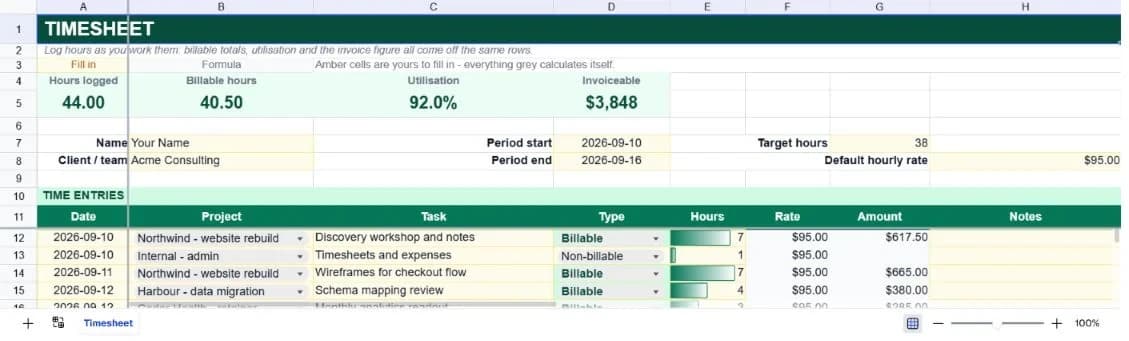
About the weekly timesheet & billable hours
Time tracking fails for a simple reason: the recording is boring and the payoff is invisible. You write down hours all week and get back a list of hours. This template closes that gap by putting the two numbers that actually matter at the top — your utilisation rate and the amount you can invoice — and deriving both from the rows you were going to fill in anyway.
Each entry takes a date, a project, a task, a type and a number of hours. Type is the important one: Billable, Non-billable, Overtime or Leave. It decides whether the row bills, and it feeds the utilisation split. Overtime counts as billable, because it is; Non-billable and Leave record hours without generating an amount, which is the whole point of tracking them separately rather than not at all.
The rate column defaults to a single figure you set once in the header, but it is a formula you can type over, which is what you want the first time a client is on a different rate. Amount is hours times rate, suppressed for the row types that do not bill. A by-project roll-up underneath totals hours, amount and share of time per project, which is the view that tells you whether the work you are doing matches the work you meant to be doing.
What’s in the template
Everything below is already built into the file. Open it and it’s there.
Fifty entry rows with type-aware billing
Billable and Overtime generate an amount; Non-billable and Leave record the hours without one. All four count toward total hours logged.
Utilisation in the summary strip
Billable plus overtime hours over total hours, calculated live. Alongside it: hours logged, billable hours and total invoiceable.
Default rate with per-row override
One rate in the header fills the whole rate column as a formula. Type over any single cell when a client or a task is priced differently.
Project and type dropdowns
Type is a strict list, because the billing logic reads it. Project is a suggestion list you are meant to replace with your own.
Typo protection on hours
Anything over ten hours in a day highlights red, and hours are constrained to a 0 to 24 range. A 70 typed where 7.0 was meant would otherwise sail straight through to an invoice.
By-project roll-up
Hours, amount and share of total time per project, so you can see where the week actually went rather than where you planned it to go.
Who it’s for
Freelancers and contractors
The invoiceable total in the summary strip is the number you put on the invoice. Everything else on the sheet exists to make that number defensible if a client asks how it was arrived at.
Consultancies tracking utilisation
Utilisation is billable hours over total hours, and it is the metric agencies live and die by. It sits in the summary strip and updates as you log.
Anyone billing multiple clients
Project is a dropdown you edit to match your own work, and the roll-up splits hours and amounts per project, so a month's work separates into invoices without re-sorting anything.
Salaried staff logging time for cost allocation
Set the rate to your internal cost rate rather than a bill rate and the same sheet reports project cost instead of project revenue.
How to use the weekly timesheet & billable hours
- 1
Set your default rate and target hours
The default rate fills the rate column; target hours drives the highlight that tells you when the period came in short. Both live in the header block.
- 2
Replace the sample projects with your own
Edit the project dropdown list and the by-project roll-up rows so they match. Both read the same names, so a project in one and not the other reports zero hours.
- 3
Log entries as you work, not at the end of the week
Friday afternoon reconstruction is where billable hours go missing, and it always rounds down rather than up. Two minutes a day is worth more revenue than an hour on Friday.
- 4
Check utilisation before you invoice
If utilisation is far below where you expect, the usual cause is unlogged billable work being recorded as admin, not a genuinely quiet week.
The formulas that ship with it
Every one of these is already in the file. They’re listed so you can see how it works, and change it if you want to.
Amount (column G)
=IF(OR($E12="",$D12="Non-billable",$D12="Leave"),"",ROUND($E12*$F12,2))Hours times rate, rounded to cents, and suppressed entirely for the two row types that do not bill so they cannot creep into an invoice total.
Rate (column F)
=IF($C12="","",$H$8)Pulls the default rate from the header for any row with a task on it. It is a formula rather than a fixed value so overriding one row is a deliberate act you can see.
Billable hours (summary strip)
=SUMIF(D12:D61,"Billable",E12:E61)+SUMIF(D12:D61,"Overtime",E12:E61)Both billing types added together. Overtime is billable work at a different label, and leaving it out would understate utilisation.
Utilisation (summary strip)
=IF(A5=0,0,B5/A5)Billable over total, guarded so an empty sheet reads zero rather than a divide-by-zero error.
Tips for getting more out of it
- Log non-billable time honestly. A utilisation rate of 100% means you are not recording admin, not that you have eliminated it, and the fiction makes capacity planning impossible.
- Use the task column properly. When a client queries an invoice, a line reading "Migration dry run, 7.5h" settles it; a line reading "work" starts an argument.
- If a project consistently runs over, compare its roll-up hours against what you quoted. That gap, tracked over a few projects, is how you learn to price.
- Overtime is a separate type on purpose. Tracking it as ordinary billable hours hides the pattern, and the pattern is usually the thing worth fixing.
Ask questions about your data, generate formulas in plain English, and create charts instantly, all on top of the Weekly Timesheet & Billable Hours.
Questions about this template
More business templates
Project Task Tracker
Owners, due dates and progress per task, plus a live count of what's overdue.
Use thisProfessional Invoice
Fifteen line items with per-line discounts. Subtotal, tax and balance due calculate themselves.
Use thisEmployee Directory & Org Chart
Contact details and reporting lines, with tenure and department headcount derived automatically.
Use thisSave hours
Skip the setup. Start from a ready-made structure.
Error-free
Pre-tested formulas that just work.
Professional
Designed for real-world use, ready to share.
Consistent
Maintain standards across every document.
Ready to use the Weekly Timesheet & Billable Hours?
No setup, no learning curve, just results. Start free in seconds.
Pay as you go, no subscription required