Tutorials

AI Functions in Excel: Sort, Score and Summarise Text with a Formula

Twelve support tickets, four formulas, one fill-down. Excel gave us a category, a sentiment score, the order number and a summary for every ticket, and every order number was right. Then one more formula drafted the replies. Here's the whole session.

The SheetAI Team6 min read
AI functions in Excel: a formula cell connected to the two ranges it reads. Cover image from the SheetAI blog.

Key takeaways

  • The SheetAI add-in adds twelve AI functions to Excel. You type them like any formula, =SHEETAI.AI_CLASSIFY(B2, "…"), and fill down.
  • Extraction was the most reliable: every order number in our twelve tickets came out right, and the cells without one stayed blank.
  • Write categories that don't overlap, and AI_CLASSIFY sorts every row into exactly the bucket you meant.
  • Each new cell costs at least one credit. The answer is remembered, so recalculating doesn't charge again.
  • Use functions for one answer per row. Use the SheetAI chat pane when you want something built across the sheet.

Most of the text in a spreadsheet never gets used. A column of customer comments, ticket descriptions or survey answers sits next to the numbers, and nobody reads all of it because nobody has an afternoon to spare. Excel's own functions can't help, because LEFT, FIND and SEARCH don't know what a sentence means.

AI functions do. With the SheetAI Excel add-in installed, you get formulas that read a cell and answer a question about it: which category is this, how angry is the customer, what's the order number. We tried them in Excel on the web, on twelve support tickets from a made-up furniture shop. Every screenshot below is from that session.

The functions
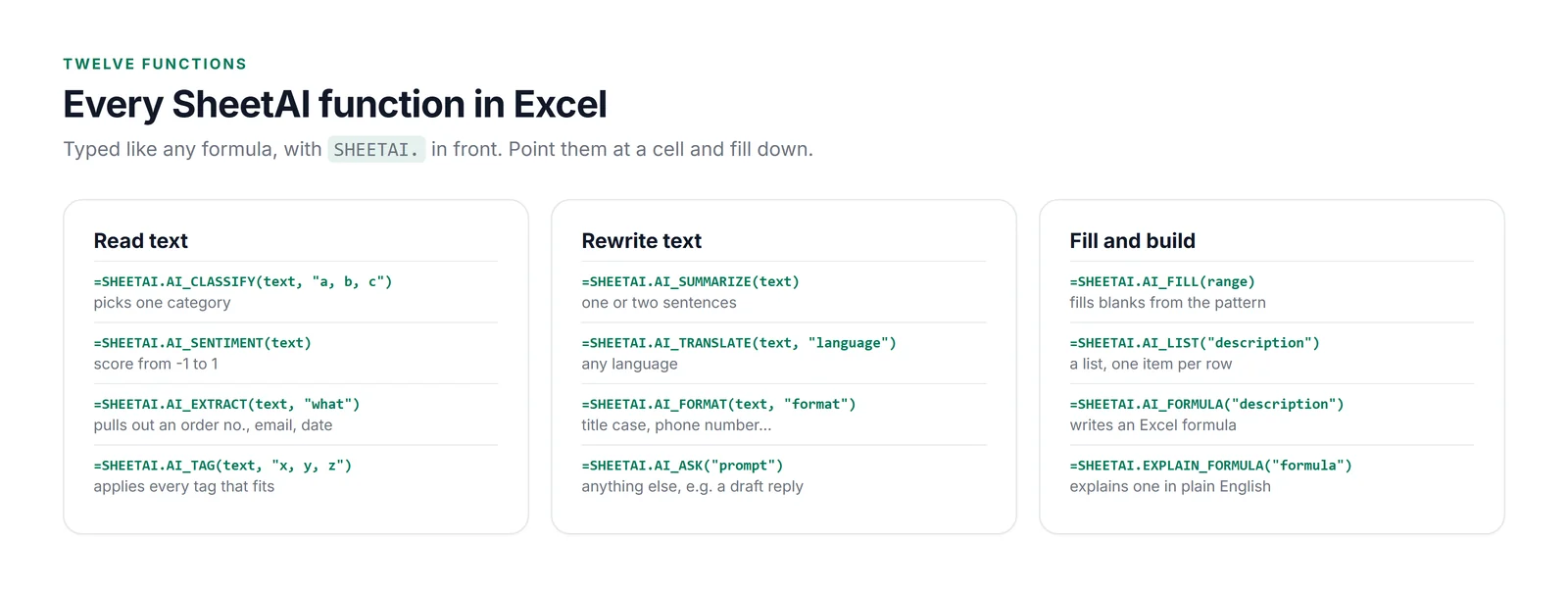
Twelve functions in three groups, each written with the SHEETAI. prefix. Read text: AI_CLASSIFY picks one category, AI_SENTIMENT scores from -1 to 1, AI_EXTRACT pulls out an order number, email or date, AI_TAG applies every tag that fits. Rewrite text: AI_SUMMARIZE, AI_TRANSLATE, AI_FORMAT, and AI_ASK for anything else. Fill and build: AI_FILL fills blanks from a pattern, AI_LIST makes a list, AI_FORMULA writes an Excel formula, EXPLAIN_FORMULA explains one.
Excel puts the add-in's name in front of each function, so it's =SHEETAI.AI_CLASSIFY, not =AI_CLASSIFY.

The SHEETAI. prefix catches people out. Excel requires every add-in function to carry the add-in's name, so the functions you might know from Google Sheets as =AI_CLASSIFY are =SHEETAI.AI_CLASSIFY here. Start typing =SHEETAI. and Excel's autocomplete lists them all.

The tickets

Twelve messages, the kind any small online shop gets in a week: a desk stuck in "processing" for three weeks, a double charge, a lamp that flickers, a delighted customer, a question about shipping to Ireland. Column A has the ticket number, column B the message. We wanted four columns filled in: a category, a sentiment score, the order number if there was one, and a one-line summary.

Step 1: Write the formulas for the first row

One formula per column, all pointing at the message in B2:

C2: category
=SHEETAI.AI_CLASSIFY(B2, "Delivery, Damaged item, Billing, Product fault, Question, Praise")
The categories are just text in quotes. The function returns exactly one of them.
D2: sentiment
=SHEETAI.AI_SENTIMENT(B2)
A number from -1 (furious) to 1 (delighted), so you can sort and average it.
E2: order number
=SHEETAI.AI_EXTRACT(B2, "order number")
Say what to pull out in plain words. Blank if there isn't one.
F2: summary
=SHEETAI.AI_SUMMARIZE(B2)

The first ticket came back in a few seconds: Delivery, -0.75, 58213, and a summary that kept the detail that matters, that the customer is considering asking for a refund. Then we selected C2:F13 and pressed Ctrl+D to fill all four formulas down.

Step 2: Read what came back
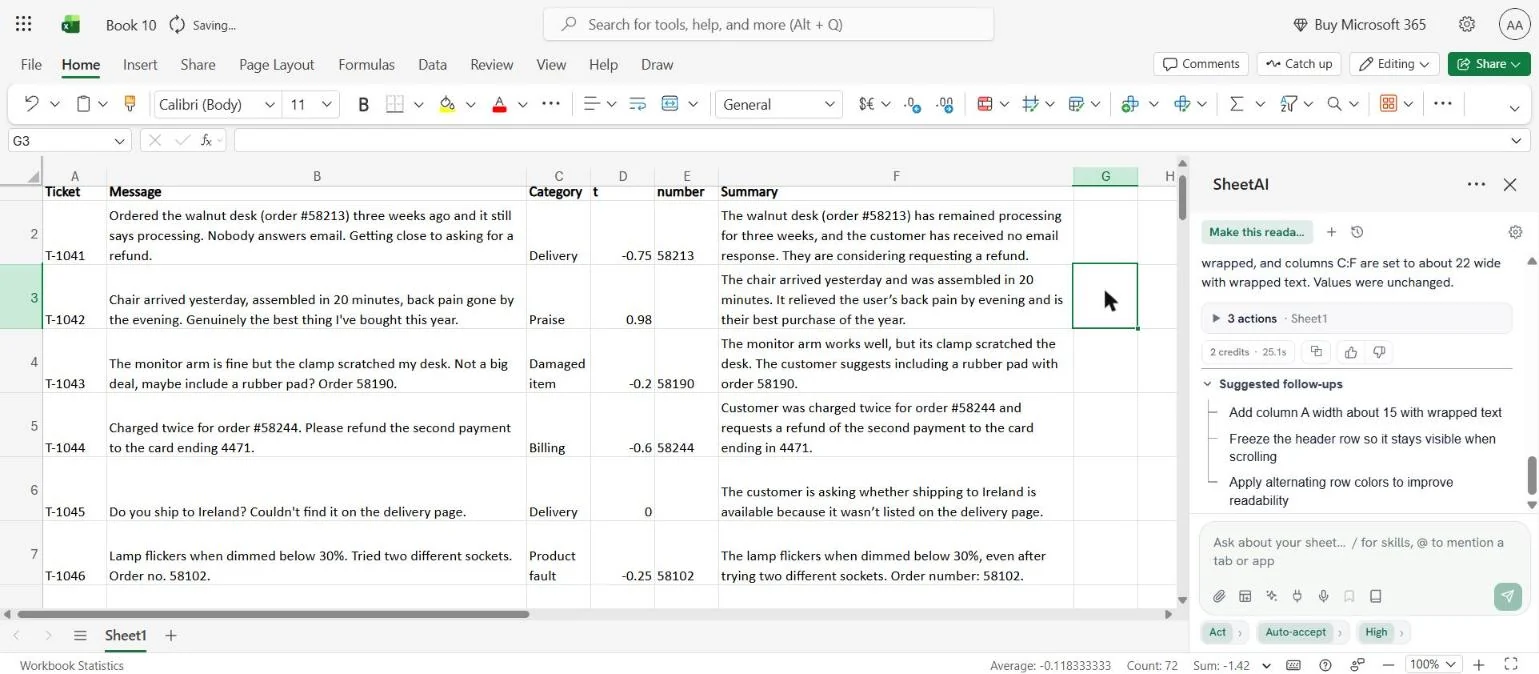
Excel on the web with tickets T-1041 to T-1046. Columns: Category, Sentiment, Order number, Summary. T-1041 stuck walnut desk: Delivery, -0.75, 58213. T-1042 delighted chair customer: Praise, 0.98, no order number. T-1043 scratched desk from monitor arm clamp: Damaged item, -0.2, 58190. T-1044 charged twice: Billing, -0.6, 58244. T-1045 do you ship to Ireland: Delivery, 0, no order number. T-1046 flickering lamp: Product fault, -0.25, 58102. Each row has a one-sentence summary.
The first six tickets. The order numbers are exactly right, and the two messages without one are blank.
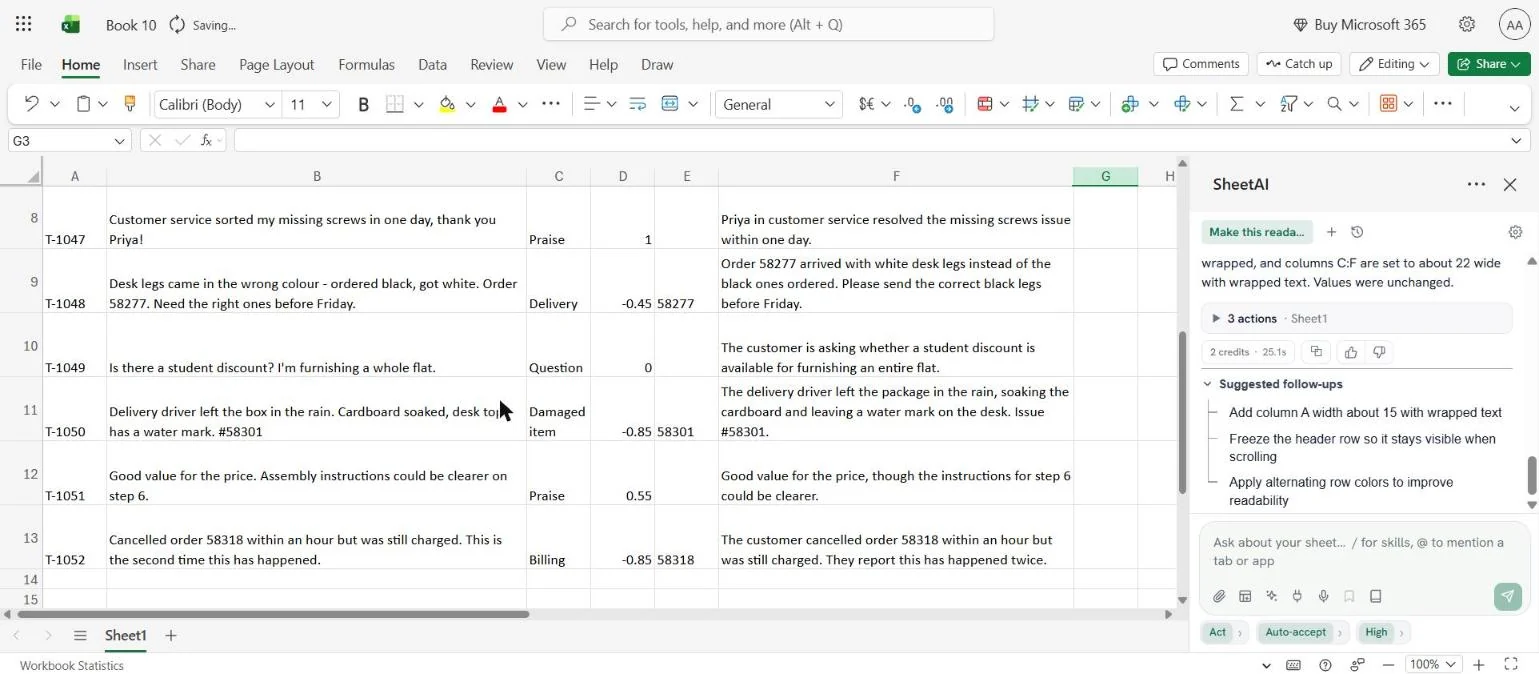
Tickets T-1047 to T-1052. T-1047 thanks Priya for missing screws: Praise, 1. T-1048 desk legs in the wrong colour, order 58277: Delivery, -0.45, 58277. T-1049 student discount question: Question, 0. T-1050 box left in the rain, water mark, #58301: Damaged item, -0.85, 58301. T-1051 good value, unclear step 6: Praise, 0.55. T-1052 cancelled order 58318 but charged, second time: Billing, -0.85, 58318.
The rest. The two most negative scores (-0.85) are the rain-damaged desk and the repeat billing error.

Going through it row by row, here's how each function did.

  • AI_EXTRACT: 12 out of 12. Every order number came out right, whether it was written "order #58213", "Order 58190", "Order no. 58102" or just "#58301". The four messages with no order number stayed blank instead of inventing one. This is the function we'd trust first.
  • AI_SENTIMENT: sensible throughout. The double-billed repeat customer and the rain-soaked desk both scored -0.85, and the thank-you to Priya scored 1. The mixed "good value, but step 6 is unclear" got 0.55, which is about right. Sort by this column and the tickets to answer first are at the top.
  • AI_SUMMARIZE: kept what matters. Every summary held on to the detail a support lead needs: the refund threat, "this is the second time". For an even shorter version, use AI_ASK with a word limit.
  • AI_CLASSIFY: every ticket in a bucket. Billing errors, damaged items, product faults, praise and questions all landed where you'd expect, which makes the column ready to filter and count.

Getting the most from AI_CLASSIFY

AI_CLASSIFY always returns one of the categories you give it, so the list is where you shape the result. Make each category distinct, and add a separate one for anything you'll want to count on its own. For a support inbox, splitting "Delivery" into late orders, transit damage and wrong items gives your team three clear queues:

A sharper category list
=SHEETAI.AI_CLASSIFY(B2, "Late or missing order, Damaged in transit, Wrong item sent, Billing error, Product fault, Pre-sale question, Praise")
Seven distinct queues instead of six broad ones. Change the list and the whole column re-sorts.

Step 3: Draft the replies with AI_ASK

AI_ASK is the general-purpose one: any instruction, any text. We used it to draft a first reply to each ticket, with the rules a support lead would give a new hire:

G2: draft reply
=SHEETAI.AI_ASK("Write a two-sentence reply from our support team to this customer. Apologise once, say what we will do next, no promises about dates: "&B2)
The & joins your instruction to the message in B2, so the same formula works on every row.
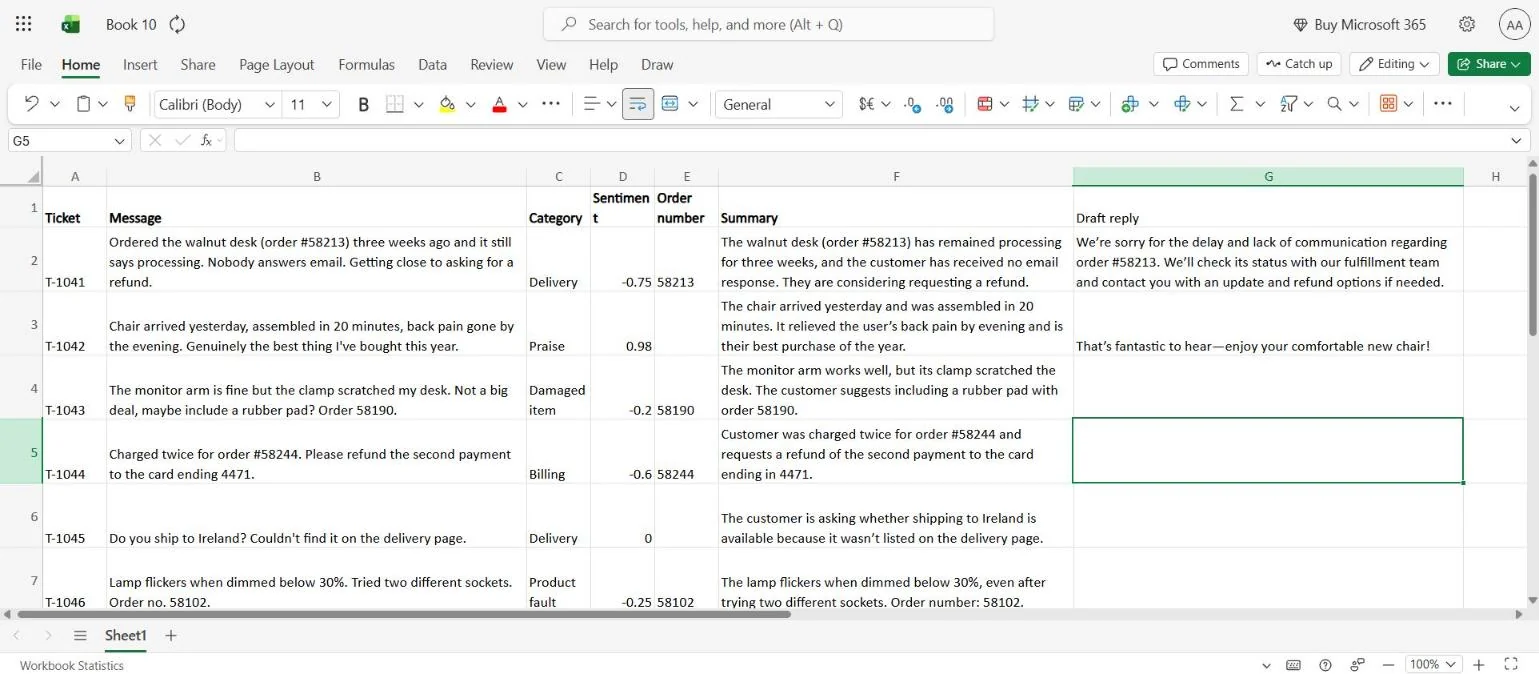
The tickets with a new Draft reply column. For T-1041, the stuck desk: We're sorry for the delay and lack of communication regarding order #58213. We'll check its status with our fulfillment team and contact you with an update and refund options if needed. For T-1042, the happy chair customer: That's fantastic to hear, enjoy your comfortable new chair!
It followed all three rules on the angry ticket: one apology, a next step, no date. And it didn't apologise to the happy customer.

Both replies are ready to edit and send. Add your own details, such as the refund policy or the courier's tracking link, and a reply that used to take five minutes takes thirty seconds.

How the functions work, and what they cost
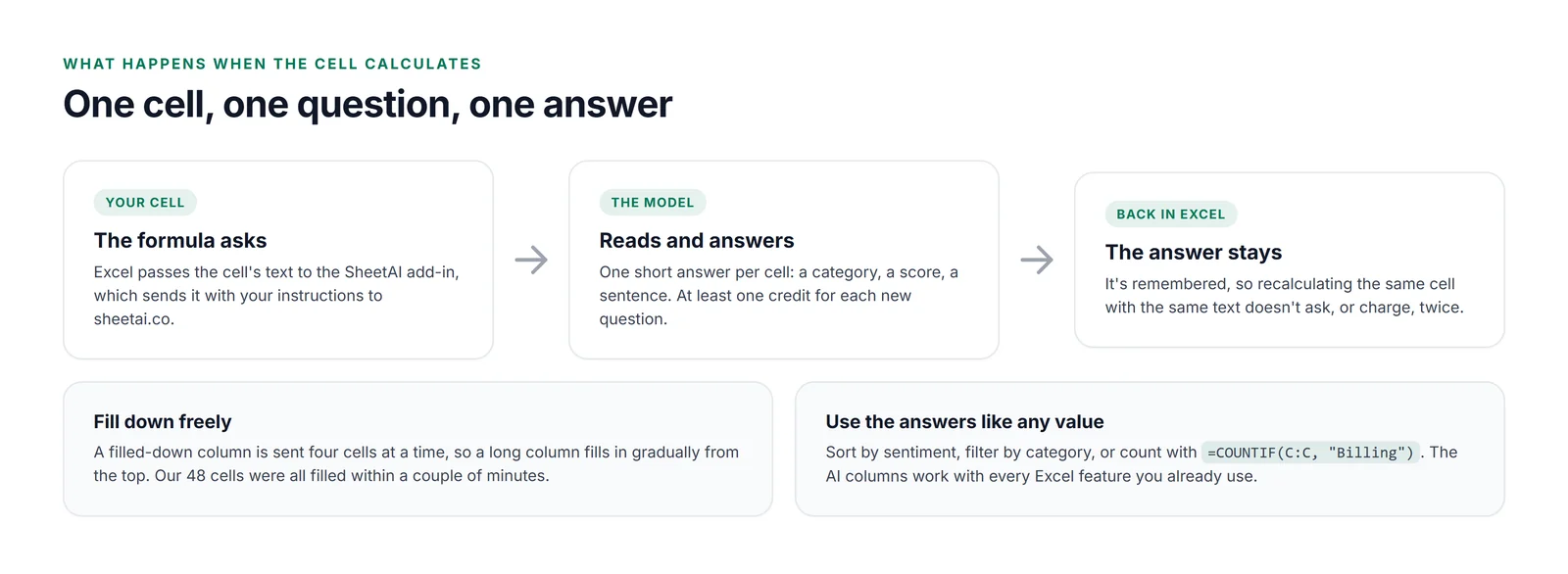
Three steps. Your cell: Excel passes the cell's text to the SheetAI add-in, which sends it with your instructions to sheetai.co. The model reads and answers: one short answer per cell, at least one credit for each new question. Back in Excel the answer stays: recalculating the same cell with the same text doesn't ask or charge twice. Below: a filled-down column is sent four cells at a time and fills in gradually; our 48 cells were all filled within a couple of minutes. And a tip: use the answers like any value, for example sort by sentiment or count with =COUNTIF(C:C, "Billing").
Each answer is an ordinary cell value, so it sorts, filters and feeds other formulas.

Cost is the thing to plan for. Each cell with new text is a separate question to the model, at least one credit each, so our four columns across twelve rows were about 48 credits. That's fine for a weekly batch of tickets. For a 5,000-row export, start with a 50-row sample, check it, and only then fill down the rest.

The good news is that answers are remembered. Recalculating, re-opening the workbook or sorting the sheet doesn't send the same question twice, so you aren't charged again for text that hasn't changed.

Functions or the SheetAI pane?

The add-in also has a chat pane, and it's worth knowing which to reach for. Functions are for one answer per row that you want to keep: a category, a score, an extracted value. They live in the cells, they fill down, and anyone who opens the workbook with the add-in sees the same results.

The pane is for work across the sheet: "build a summary of tickets by category with a chart", "highlight every ticket below -0.5", "which product gets the most complaints?". You describe the result and it does the steps. With the four columns above in place, that summary is one sentence in the pane.

Formulas you can paste

ToFormula
Sort feedback into themes=SHEETAI.AI_CLASSIFY(B2, "theme 1, theme 2, theme 3")
Score how a customer feels=SHEETAI.AI_SENTIMENT(B2)
Pull out an order number=SHEETAI.AI_EXTRACT(B2, "order number")
Pull out an email address=SHEETAI.AI_EXTRACT(B2, "email address")
Apply several labels=SHEETAI.AI_TAG(B2, "urgent, refund, repeat customer")
Shorten long text=SHEETAI.AI_SUMMARIZE(B2)
Translate=SHEETAI.AI_TRANSLATE(B2, "Spanish")
Anything else=SHEETAI.AI_ASK("your instruction: "&B2)

What we'd tell someone trying it tomorrow

Start with AI_EXTRACT and AI_SENTIMENT, which need no setup and were right on every row we checked. Then add AI_CLASSIFY, and spend five minutes on the category list, because that's where the quality comes from. Read a handful of rows before you sort or count by any AI column. And run it on a sample before filling down ten thousand rows, so the first thing you learn isn't the bill.

Add AI functions to Excel

Install the add-in, sign in once in the pane, and type =SHEETAI. in any cell.

Get the Excel add-in

Frequently asked questions

Can I use AI in Excel formulas?

›
Yes, with an add-in that provides custom functions. SheetAI adds twelve, including =SHEETAI.AI_CLASSIFY, =SHEETAI.AI_SENTIMENT, =SHEETAI.AI_EXTRACT, =SHEETAI.AI_SUMMARIZE and =SHEETAI.AI_ASK. You type them like any formula and fill them down.

Why do the functions start with SHEETAI.?

›
Excel requires functions from an add-in to carry the add-in's name as a prefix. So in Excel it's =SHEETAI.AI_CLASSIFY, while in Google Sheets the same function is =AI_CLASSIFY.

How do I categorise text in Excel with AI?

›
Use =SHEETAI.AI_CLASSIFY(B2, "category 1, category 2, category 3") and fill it down. Write categories that don't overlap: in our test, a shipping question landed in Delivery rather than Question because both fit.

How do I use the functions in another workbook?

›
Open the workbook and start the SheetAI add-in from Home → Add-ins, then type =SHEETAI. in any cell. In Excel on the web the add-in is kept per browser, so on a new browser or computer, upload the manifest once more.

How much do AI functions cost?

›
At least one credit for each cell with new text. Answers are remembered, so recalculating or reopening the workbook doesn't charge again for text that hasn't changed. Our 48 cells cost roughly 48 credits.

Do they work in desktop Excel?

›
Yes: Microsoft 365 Excel for Windows and Mac, as well as Excel on the web. Installation steps for each are on the Excel add-in page.

Written by The SheetAI Team

We build SheetAI, an AI spreadsheet assistant that reads your data, writes the formulas, and shows its work. We write about the spreadsheet problems we keep running into.

Keep reading

Get started

Put this to work on your own spreadsheet

Upload a file, ask in plain English, and watch SheetAI write the formulas into the sheet, with every step visible so you can check the work.

All articles

Works in your browser and Google Sheets · Setup in 30 seconds