Google Sheets has a Remove duplicates button, and it does one thing well: it deletes rows that are identical to another row, letter for letter.
The problem is that most duplicates aren't identical. One row says Acme Corp, the other says Acme Corp.. One email has a capital letter, the other doesn't. One has a space on the end that nobody can see. Google's button treats all of those as different rows and leaves them alone. It then tells you it removed 3 duplicates, and you get on with your day thinking the list is clean.
Here's what it misses, and what to type instead.
| One row says | The other says | Same thing? | Google's button |
|---|---|---|---|
| [email protected] | [email protected] | Yes | Misses it |
| Acme Corp | Acme Corp. | Almost certainly | Misses it |
| Jon Smith | Jonathan Smith | Probably | Misses it |
| Order 4417 | Order 4417 (refunded) | No, keep both | Keeps both, correctly |
Just tell the AI what you want
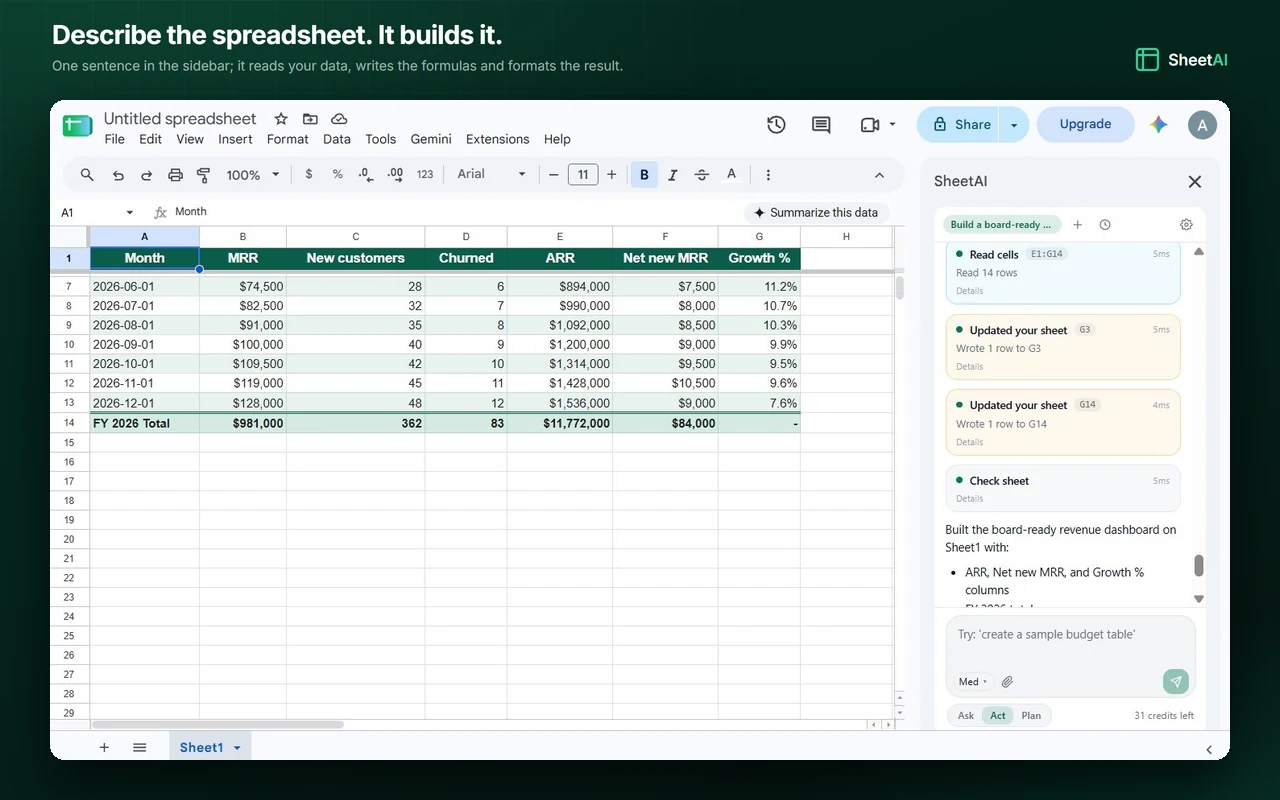
With the SheetAI add-on open in the sidebar, you don't write formulas for any of this. You type a sentence and it does the work in the sheet you already have open. Two prompts, in this order.
1. Find duplicates, and ask it to mark them
Find the duplicate rows in this sheet, matching on email. Highlight them in yellow and number each group in a new column. Don't delete anything yet.
You get a straight answer in the sidebar - how many there are and where they are - and you can also see them in the sheet. You don't have to go looking for them yourself: matching rows share a colour and a group number, so you can scroll down and check its work with your own eyes.
That last sentence in the prompt is the important one. Nothing is deleted, so if it has marked something you know isn't a duplicate, you find that out while every row is still there.
2. Delete duplicates
Delete the duplicates. Keep the row with the most information filled in. Show me the plan first.
Those last four words matter. Switch the sidebar to Plan mode and it writes out what it's about to do before it does it, with Approve, Edit and Cancel buttons. Read the plan, approve it, and it runs, listing every cell it changes as it goes.
Getting the add-on
Install it
Open the SheetAI listing on the Google Workspace Marketplace and click Install. Google will ask you to approve it.
Open it in your spreadsheet
Go to Extensions → SheetAI.co - AI Spreadsheet Assistant → Open SheetAI. It opens on the right, next to your data.
Pick a mode
Ask answers questions and changes nothing. Act makes the edit. Plan shows you what it's going to do and waits. Use Ask to find, Act to highlight, Plan to delete.
Say what counts as a duplicate
This is the one decision that's yours to make, because it's about your business, not your data. Say it in one sentence and the AI applies it to every row.
Same email address? Same name and same postcode? Same invoice number and same amount? Two orders from the same customer are not duplicates, but two copies of the same order are. Say which you mean and you'll get the right answer. Leave it out and you're relying on a guess.
The good news is you can say it the way you'd say it to a colleague:
Treat two rows as the same person if the emails match, or if the surname and phone number match. Ignore spacing and capital letters.
That last sentence is doing a lot of work. It covers the extra spaces, the capital letters and the full stops that Google's button trips over.
Near matches: the ones nothing else catches
Jon and Jonathan. Ltd and Limited. 07700 900123 and 07700900123. A name entered surname-first in one row and forename-first in the other. No formula finds all of those, and Google's button finds none of them.
Find rows that are probably the same person even though the details are written differently. Add a Confidence column and a Why column so I can see your reasoning. Don't delete anything.
Ask for the Why column every time. A near match is a judgement call, and one you can read is one you can overrule in five seconds. Sort by confidence, wave through the obvious ones, and spend your time on the middle of the list where it's actually needed.
Which row should it keep?
Google's button keeps whichever row happens to come first. That's not a decision, it's the sort order.
Usually you want the fullest record, or the newest one, or the one with a phone number in it. And quite often each row has something the other is missing: the old row has the address, the new one has the updated email. Delete either and you lose something. So tell it to merge instead:
For each group of duplicates, keep the newest row. If the older row has a value the newer one is missing, copy it across before deleting. Show me the plan first.
If you'd rather use formulas
Nothing above stops you doing it by hand, and on a small sheet it's quick. Clean the values into a helper column first, then count.
=LOWER(TRIM(A2))=IF(COUNTIF($B$2:$B2, $B2) > 1, "DELETE", "KEEP")Or use =UNIQUE(A2:E) to write a clean copy out somewhere else and leave the original alone. That's the safest option of the lot, and a good one while you're still deciding what counts as a duplicate. What formulas won't do is the near matches, so once you hit Jon and Jonathan you're back to asking the AI.
Stop them coming back
If you clean the same sheet every month, the cleaning isn't really the problem.
Give records an ID where they're created and match on that. Add a dropdown to the columns people type into, so Enterprise doesn't turn into enterprise and Ent. over time. Fix the export if it's the export that's doubling rows up. Do that once and the monthly clean-up turns into a five-second check that finds nothing, which is how it should have been all along.
Try it on your own sheet
Install SheetAI for Google Sheets, ask it to find your duplicates, and see what Google's button has been walking past.
Get the Google Sheets add-on